On this page
Why you need a plan
An active membership is what unlocks the work you came here to do. With a plan, you can create jobs, add captures (dated site visits), process imagery into products, and store your files online. Without an active plan, those buttons simply send you to the Memberships page to choose one first.
The good news: there’s a free tier, so you can start without paying anything. The paid tiers raise your limits as your needs grow.
Note: To find your plan settings, look in the left sidebar under Personal Jobs and click Memberships.
The Memberships page at a glance
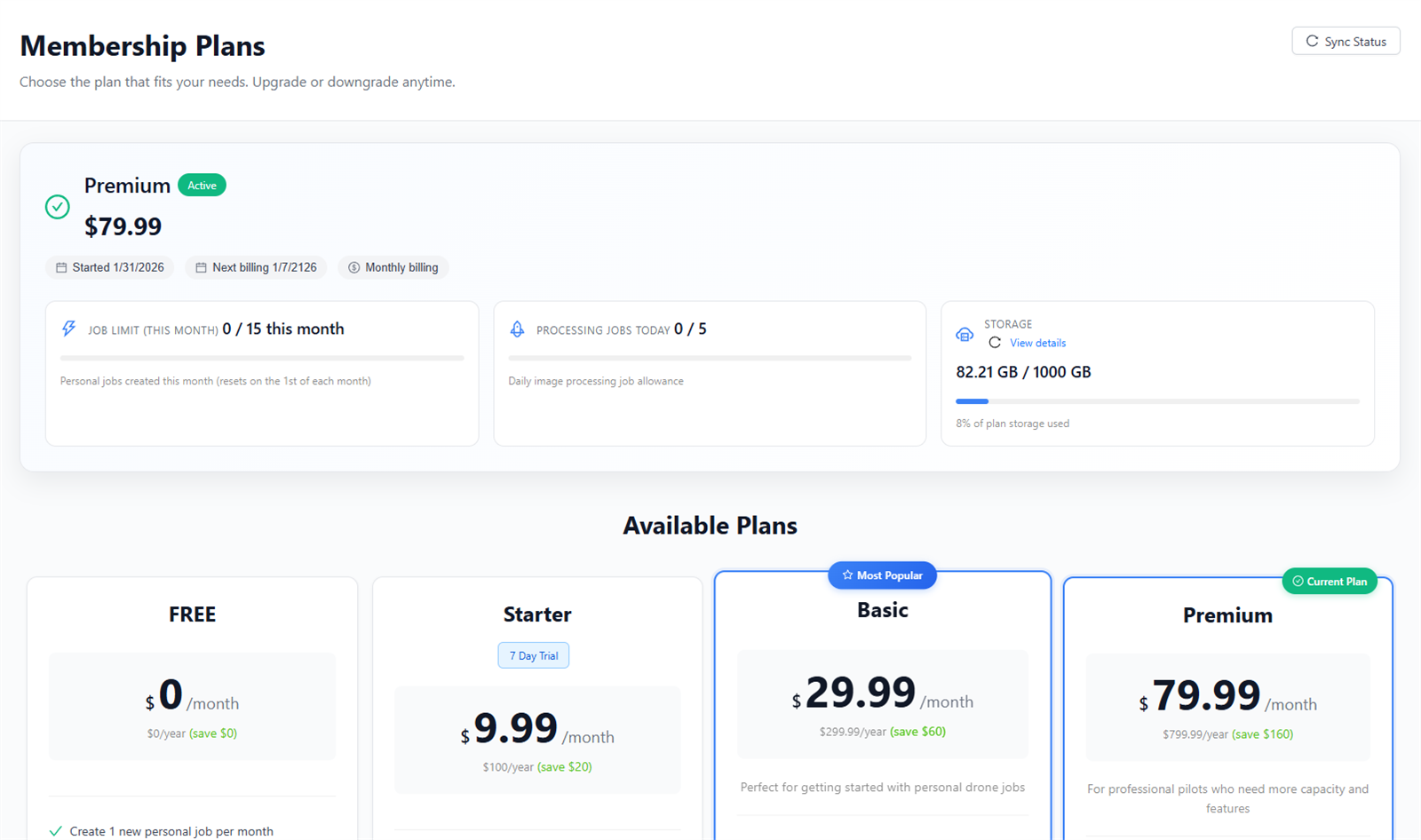
Open Memberships and you’ll land on a page headed Membership Plans. A banner near the top tells you which plan you’re on right now and its status. The status can read any of these:
- Free Tier — you’re on the no-cost plan.
- Trial — you’re inside a free trial period of a paid plan.
- Active — your paid plan is current and working normally.
- Active (Cancelling) — still active, but set to end at your next billing date.
- Cancelled — the plan has ended.
- suspended — there’s a payment problem to fix (see the last section of this page).
If the banner ever looks out of date — for example, right after you’ve paid — click Sync Status. That rechecks your subscription with the payment system and refreshes what’s shown.
Reading your usage cards
Below the banner are three cards that show, at a glance, how much of your plan you’ve used. Here’s what each one means:
- Job limit (this month) — how many new jobs you can create this calendar month. This allowance resets on the 1st of each month.
- Processing Jobs Today — how many image-processing runs you have left today. This is a daily allowance that refreshes each day.
- Storage — how much online disk space your files and products are using versus your plan’s limit. The bar fills as you use space — it turns orange at 75% and red at 90% so you get a warning before you run out. A Recalculate storage icon re-tallies your usage, and View details opens a Storage Breakdown by Job so you can see which jobs are taking up the most room.

Tip: Deleting a file doesn’t free up space right away — recycled files still count toward your storage until you permanently remove them. To reclaim space, empty the recycle bin. See Storage, Recycle Bin & Tools for how.
Choosing a plan
Scroll to the Available Plans grid. Each plan is shown as a card with its name, an optional trial tag, and both a monthly and yearly price. The card also lists what that tier controls:
- How many new personal jobs you can create per month.
- How many captures (dated visits) you can add per job.
- How many image-processing jobs you can run per day.
- How much storage you get.
- Extras such as custom branding and a custom domain (using your own web address).
You may also notice small badges on the cards: a star badge highlights a recommended plan, Current Plan marks the one you’re already on, and Free Tier marks the no-cost option.
Note: Prices and exact limits vary by plan and can change, so we don’t list specific numbers here — always check the live figures shown on each plan card before you subscribe.
Subscribing
What this is: turning on a plan so you can start creating jobs. Paid plans are handled through a secure checkout; the free tier turns on instantly.
Pick a plan. On the plan card you want, click Subscribe Now.
Choose how often you pay. A Complete Subscription window opens. Choose your Billing Period — Monthly or Yearly.
Confirm. Click Subscribe Now in that window.
Enter payment. You’re taken to a secure checkout page (handled by Stripe, a trusted payment provider) to enter your card details. After paying, you’re returned to the app automatically. (If you chose the free tier, it activates immediately with no checkout step.)
You’ll know it worked when… the banner at the top of the Memberships page shows your plan as Active. If it still looks old, click Sync Status to refresh.
Upgrading or downgrading
Already on a plan and want to move to a different one? How the change takes effect depends on the direction.
Upgrade (move to a higher plan)
Click Upgrade Now on the plan you want. The upgrade takes effect immediately, and the cost is prorated — meaning you only pay the difference for the time left in your current billing period.
Downgrade (move to a lower plan)
Click Downgrade on the lower plan, then Schedule Downgrade. A downgrade is scheduled to start at your next billing period, so you keep your current plan’s benefits until then.
Note: Upgrades are instant; downgrades wait until your next billing date. So if you downgrade, don’t be surprised that your current limits stay in place for the rest of this period.
Managing billing & canceling
What this is: updating your card, viewing past invoices, or canceling — all handled in a secure billing portal.
Open the billing portal. On the Memberships page, click Manage subscription. The secure billing portal opens in a new browser tab.
Do what you need. From the portal you can update your payment card, see and download your invoices, and cancel your subscription.
Tip: If you cancel, your plan keeps working until the end of the period you’ve already paid for — the banner will read Active (Cancelling) until then.
If your account gets suspended
Sometimes a payment fails — for example, if your card expires. When that happens, your membership can be suspended, and your personal-job features pause until it’s sorted out.
Warning: A failed payment can suspend your membership — you’ll see Membership Suspended. While suspended, you can’t create or edit personal jobs. To fix it, click Manage subscription to update your card, or use Retry Payment if it’s offered. Once the payment goes through, your features come right back.
What’s next? With a plan in place, you’re ready to build your first project. Head to Creating & Organizing Jobs.
Next: Creating & Organizing Jobs
Create your first job, organize your projects, and understand captures (visits to a site over time).
Read guide →Was this page helpful?
Thanks for the feedback! It helps us improve the guide.
Still stuck?
We’re happy to help — email us and a real person will get back to you.
contact@nationaldroneservices.net